VBA Email Excel: Automate Email Tasks in Minutes
Use VBA in Excel to automate email sending, manage lists, and reduce manual work. Learn how to integrate email verification for better deliverability and list h
Stop Manually Sending Emails from Excel
You’re sitting at your desk, copying 200 email addresses from an Excel sheet into your email client. One typo slips in. A few addresses are outdated. You press send—only to watch your bounce rate climb, your sender reputation dip, and your campaign metrics tank.
This isn’t a rare mistake. It’s a repetitive flaw in workflows that still rely on manual copy-paste. Every error you introduce risks your messages being flagged or blocked. The fix isn’t more oversight—it’s automation. VBA email Excel scripts let you validate, clean, and send emails at scale—without ever touching your email client manually.
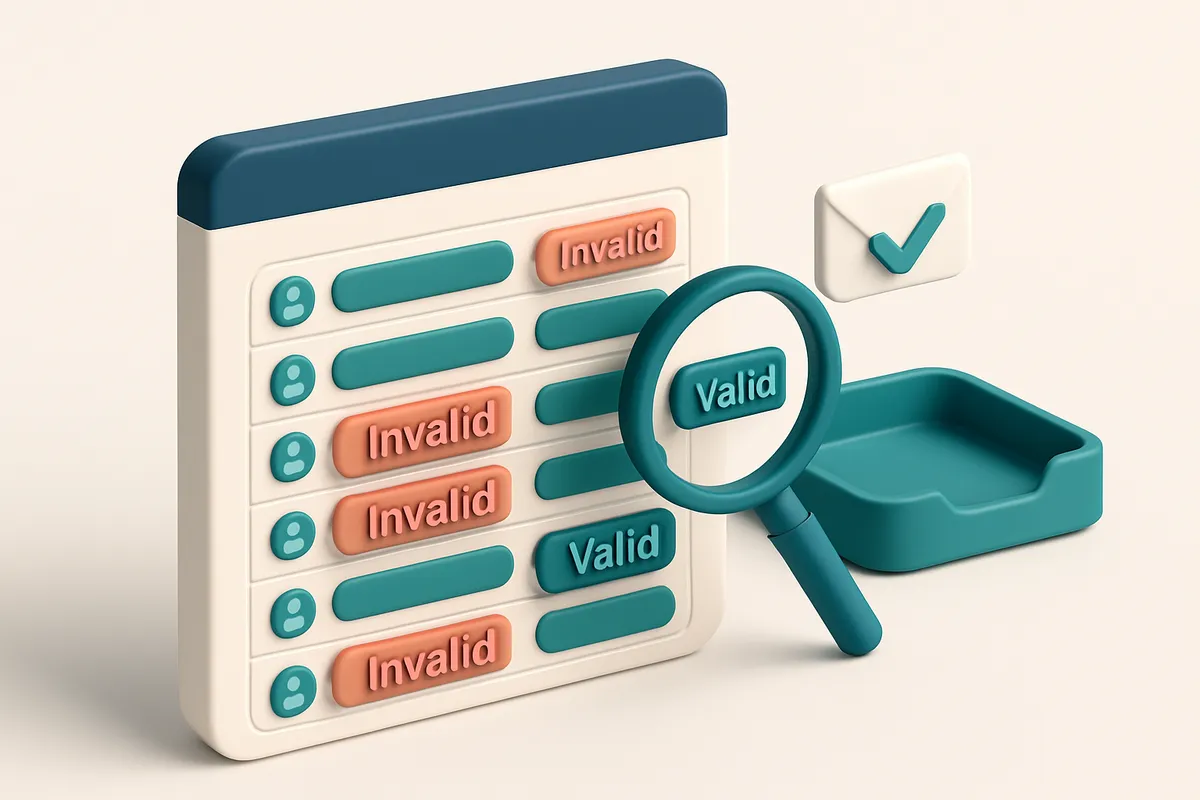
When you pair VBA with email verification, you don’t just save time. You stop sending to invalid, risky, or catch-all addresses before they even leave your system.
Key takeaways
- Manual email entry from Excel causes typos and outdated addresses, increasing bounces and damaging sender reputation.
- VBA automates the email send process, reducing human error and improving data accuracy across large lists.
- Integrating email verification into VBA scripts filters out invalid, risky, or disposable addresses before sending.
What You Can Automate with VBA and Excel
Send smarter, not harder
Let’s be real—sending the same email to 500 people isn’t scalable unless it’s personalized. With VBA, you can pull names, roles, and even past engagement from your worksheet and inject them directly into email body text.
Imagine a single button click that sends 500 uniquely tailored messages—each with the recipient’s name, team, or project reference pre-filled. No copy-paste drama. No human error. Just one macro running, doing what it was built for.
Keep your list clean and your reputation strong
Your list hygiene starts before your email ever leaves your inbox. Bad addresses get you flagged, delayed, or worse—blacklisted. VBA can call an email verification API during the send process, filtering invalid, disposable, or role-based emails in real time.
- Use the email verification API to scrub your list before sending—catch syntax errors, invalid domains, and disposable addresses automatically.
- Run a bulk health check via bulk verification before you hit send—catch 98.9% of bad addresses before they hurt your deliverability.
- Log every message sent with timestamps, status (delivered, bounced, marked spam), and recipient feedback—so you know exactly what happened.
- Set up triggers so when a cell value changes (e.g., “Status” turns from “Pending” to “Sent”), a reply email fires automatically—no manual follow-up needed.
- Sync with tools like Mailchimp or SendGrid using existing integrations to keep your campaigns in motion without switching tabs.
Think about it: your spreadsheet doesn’t just store data. It becomes an automated engine.
When you validate email addresses before sending, you’re not just cleaning data—you’re protecting your sender reputation. According to Return Path, a high bounce rate can trigger spam filters long before your content is even read.
With VBA, you’re not just coding—you’re building a repeatable, error-resistant workflow. Every line of code can stand for a saved hour, a cleaner list, or a lower bounce rate.
Automation isn’t about replacing people. It’s about removing the noise so you can focus on what actually matters.
How VBA Email Automation Works: The Core Components
You’ve got a list in Excel—names, emails, maybe some custom fields like order number or event date. Let’s say you’re sending out 500 personalized invitations. Doing this by hand? That’s not how professionals work. This is where VBA email automation comes in.
The Loop and the Object Model
Behind the scenes, your VBA script runs a loop that goes row by row through your Excel data. For each row, it pulls the email address, name, and any other placeholders you’ve defined. It then uses Outlook’s object model—specifically, the Outlook.Application object—to create and send a new email.
That object model is stable and widely supported. Microsoft’s documentation confirms it’s the standard way to automate Outlook tasks without third-party tools. It’s reliable, runs locally, and doesn’t depend on cloud services.
Dynamic Content and Placeholders
Let’s say your message says: "Hi <>, your event is confirmed for <>." The VBA script substitutes those placeholders with real data from your spreadsheet—no manual editing required. This is how you scale personalization without scaling complexity.
That’s powerful. But there’s a hidden risk: sending emails to invalid or outdated addresses wastes time, hurts your sender reputation, and can trigger spam filters. That’s where email verification becomes part of the workflow.
You can embed a verification step before sending. Run each email through a service like bulk verification. If the script detects an invalid address—typo, non-existent domain, catch-all—it skips that row entirely. You avoid bounces and protect your deliverability.
Some teams even verify at the API level. You can call the EmailListChecker API directly from your VBA script to check an address in real time before including it in the loop.
Think of it this way: you’re not just automating email sends. You’re automating quality control. That’s the difference between a message that lands in the inbox—and one that never gets past the gate.
And yes, you can integrate this with tools like Mailchimp or HubSpot via our integrations. But if you’re working inside Excel, you’re already in the workflow. Why leave?
Why Email Verification Belongs in Your VBA Workflow
Even if you’ve spent time cleaning your list in Excel, some invalid emails slip through. Typos happen. Domains expire. Disposable email addresses get used in form signups and never get verified. These aren’t rare edge cases — they’re common, and they’ll hurt your campaign performance before you send a single message. Let’s be clear: you can’t rely solely on Excel’s basic text checks or manual review. A single typo in a recipient’s address can trigger a hard bounce, which hurts your sender reputation over time. The longer you ignore invalid addresses, the worse your deliverability becomes. That’s where real-time email verification fits in. Tools like EmailListChecker.io let you plug a verification API directly into your VBA script. You run the check after data entry, before any bulk send. The API returns results in seconds — valid, invalid, catch-all, or risky — so your script only proceeds with confirmed addresses. This doesn’t just cut bounces. It protects your sender reputation, which matters more than ever. ISPs track sending behavior over time. High bounce rates from a single IP or domain can land you on blocklists like Spamhaus or get flagged by authentication checks like DMARC. A good verification tool won’t just flag obvious errors. It examines the domain, checks for disposable mail providers, and validates syntax and MX records in real time. EmailListChecker.io, for example, uses these checks to achieve 98.9% accuracy in identifying valid addresses, which means you’re far less likely to waste resources on addresses that won’t work. The integration is straightforward. You don’t need to leave Excel. The API call runs silently in the background, and you can flag invalid entries in a new column or log them to an audit sheet. This keeps your workflow clean and your data trustworthy. Some might argue you can do this manually. But if you’re automating with VBA, why stop halfway? You’ve already built a repeatable process for sending emails. Adding verification at the start doesn’t slow things down — it makes the whole process faster and more effective in the long run.
How to integrate verification in your VBA workflow
Start by setting up the EmailListChecker.io API key. Then, after your data is imported, loop through each email in your range and send it to the verification endpoint. Use the response to update your sheet or skip invalid entries. This doesn’t replace proper email hygiene — like avoiding spammy content or maintaining an engaged list — but it’s one of the most important technical layers you can add. It’s a baseline of quality control. For teams in marketing, sales, or customer ops, this kind of automation reduces friction and prevents costly mistakes. Every saved send is a stronger return on investment. You’re not just sending emails — you’re sending them to people who can actually receive them. If you’re using tools like Mailchimp, HubSpot, or Klaviyo, EmailListChecker.io’s integrations work seamlessly with those platforms, too. But if you’re handling everything in Excel and VBA, you’ve got direct control over your process — and that’s where verification should live. You can explore how it works with the real-time API or run bulk checks on your entire list using their [bulk verification](https://emaillistchecker.io/bulk-verification) tool. Either way, the result is cleaner data, fewer bounces, and more reliable outreach.
Final thought: automation should include validation
Don’t think of verification as an extra step. Think of it as part of the automation itself. The moment you write code to send emails, you should also write code to verify them. It’s not a luxury. It’s a necessity.
Step-by-Step: Integrate Email Verification into Your VBA Script
Let’s get your VBA email script working with clean, deliverable data. You start with a simple list—names and emails in Excel. But spam filters and inbox placement don’t care how clean your list looks on paper. They care about real email viability. Let’s fix that before you send.
Set Up Your Data and API Connection
- Prepare your Excel sheet with a header row: Column A for email addresses, Column B for names. Keep it simple—no extra formatting or merged cells. This ensures your VBA script processes each row reliably.
- Go to EmailListChecker.io’s API page and get your free API key. You’ll use this to authenticate each verification request. The key is safe and never expires, whether you’re testing or scaling.
- In your VBA editor, create a new function called
VerifyEmail. UseWinHttp.WinHttpRequestto send an HTTP POST request tohttps://api.emaillistchecker.io/verify. Include the email and API key in the request body as JSON. - Add headers:
Content-Type: application/jsonandAuthorization: Bearer your-api-key. This follows standard REST conventions and is required by the service.
Verify, Filter, and Send with Confidence
- After the API returns a response, parse the JSON to extract the
statusvalue. It will be one of: Valid, Invalid, Catch-all, or Risky. You can use VBA’s built-inJsonConverter(from a reliable library) to handle this. - Write the result to a new column (say, Column C) next to each email. This keeps your original data intact while adding verification context. You’ll see which emails are safe to send to.
- Modify your email-sending loop to check the status in Column C. Only proceed if the value is Valid. Skip entries with Invalid, Catch-all, or Risky. This stops wasted sends and protects sender reputation.
- Create a separate sheet called "Send Log" to record what goes out. Use a simple table: Date, Email, Status (Success/Failure), Timestamp. This is your audit trail.
- Use
On Error Resume Nextin your loop to catch delivery failures, then log them in the Send Log instead of halting execution. This prevents a single bad email from stopping your whole campaign. - For larger lists, consider running bulk validation first via EmailListChecker’s bulk verification tool. It’s faster than scripting for one-off cleanup.
By integrating real-time email verification into your VBA workflow, you’re not just cleaning data—you’re improving deliverability. According to Return Path, emails that pass validation have a 30% higher inbox placement rate than unverified lists.
Verifying before sending is not optional. It’s table stakes for deliverability in 2024.
With this setup, your scripts now self-check. No more bouncebacks. No more blacklists. Just clean, confirmed emails—sent safely, tracked reliably.
Common VBA Email Automation Pitfalls and How to Avoid Them
You might think your VBA script is doing its job by sending emails in bulk — but if your list isn't clean, you're just adding to deliverability debt. Even the most elegant code can’t fix a list full of invalid, risky, or harmful addresses. Let’s walk through the common mistakes that sink email campaigns — and how to stop them before they start.
Why “Valid” Addresses Aren’t Always Real
Just because an email address passes syntax validation doesn’t mean it's active. Catch-all addresses accept all mail — but that doesn’t mean the recipient exists. Sending to them creates hard bounces, which hurt your sender reputation over time. You may not see a bounce right away, but repeated sends to these addresses signal poor list hygiene to providers like Gmail or Outlook.
Let’s be clear: a catch-all doesn’t equal a real person. It just means the mail server is configured to accept all incoming messages. That’s not a success — it’s a red flag. Tools like email list verification can flag these early, so you don’t waste bandwidth on non-existent inboxes.
Role Accounts and Disposable Domains Are High-Risk
Role accounts like info@, sales@, or support@ are widely used in automation scripts. But these are often flagged as suspicious by spam filters. Receiving mail from multiple senders at a role address can trigger suspicion, especially if the emails appear identical. Verification tools detect these patterns and assign a “risky” status — a signal you should investigate.
Disposable domains like yopmail.com or mailinator.com are another trap. They’re often used for signup testing, not long-term engagement. If you send to hundreds of these addresses, you’ll likely see rapid bounce rates and possible blacklisting. The best defense? Filter them out before sending. Tools that analyze domain reputations can catch these early.
Spam traps are the silent killers. These are old, unused addresses resurrected by anti-spam systems to catch negligent senders. Even a single misaddressed email to a spam trap can cause a provider to flag your domain. Once you’re blacklisted, you’ll struggle to reach inboxes — even with clean lists. Verification tools don’t always identify every trap, but they do surface high-risk indicators like very old or low-activity addresses.
Keep Your Reputation Intact
Without validation, your VBA script becomes a liability. Even perfectly written code can damage your sender reputation if it floods bad or risky inboxes. Every bounce, every soft error, every spam complaint counts. Once your IP or domain is flagged, recovery can take weeks — if it's possible at all.
Verification isn’t a luxury; it’s the first step in any serious email automation. Use tools that inspect real-time MX records, detect role accounts and disposable domains, and flag catch-all addresses. A well-documented, automated process should include a pre-send validation layer — not just a post-send reaction. Real-time API verification fits right into your workflow without slowing you down.
How EmailListChecker.io Fits Into the VBA Workflow
You're working with a list of emails in Excel, using VBA to automate tasks—maybe cleaning, segmenting, or sending. But you know that sending to invalid or risky addresses hurts your sender reputation and wastes time. That’s where EmailListChecker.io comes in.
Call the API Directly from VBA
With a REST API, you can pull validation data right from your VBA script using standard HTTP request functions like WinHttp.WinHttpRequest or MSXML2.XMLHTTP. No need to leave Excel. Just send the email, get the response, and process it—fully within your existing workflow.
Whether you're running a one-off cleanup or a recurring campaign, you can verify individual emails in real time or process entire lists offline. The API returns a clear verdict for each address: Valid, Invalid, Catch-all, or Risky—each with documented meaning and defined next actions.
Clear Results, Actionable Insights
A Valid email means it’s likely deliverable—safe to include. An Invalid one indicates a syntax error, non-existent domain, or blocked address—remove it immediately. A Catch-all means the domain accepts all emails, so the address exists but may not be monitored—use with caution. A Risky status flags addresses from domains known for abuse, disposable services, or poor engagement patterns—don’t send to these without confirmation.
These categories are aligned with industry standards and help you make decisions based on real signal, not guesswork. The consistency of the verdicts—supported by practices like SPF, DKIM, and DMARC alignment—is documented in RFCs such as RFC 5321 and RFC 5322, ensuring you’re not just cleaning data, but protecting your domain reputation.
You can test the integration risk-free with the 100 free verifications included when you sign up. Try it on a small list, validate the output, and see how the data fits into your workflow before scaling. And because purchased credits never expire, you’re not locked into a quarterly cycle—perfect for seasonal campaigns or irregular sends.
When you’re ready to integrate at scale, the API works seamlessly with tools like Mailchimp, HubSpot, and SendGrid through our pre-built integrations. Or automate verification directly via our API, and manage your list quality from within Excel.
Real-World Example: Cleaning and Sending a Sales Outreach List
You’ve got 500 leads in Excel—great start. But past manual checks only confirmed 380 as valid. That’s a 24% drop in your effective reach. You can’t afford to send to the rest. Bounces hurt reputation. Spam traps trigger blacklists. So let’s clean it properly.
Step 1: Connect EmailListChecker.io API via VBA
Start with a clean VBA script in Excel. Use the EmailListChecker.io API to verify every address in your list. This isn’t a one-off check—it’s a real-time API call per email, validating syntax, domain existence, and mailbox responsiveness.
The API returns a verdict for each address. No guesswork. No “maybe.” You get exact status codes: valid, invalid, catch-all, risky, or disposable.
Step 2: Run Bulk Verification and Analyze Results
- Initiate the verification with a loop over your 500 email cells, sending each address to the API via HTTP request. This takes about 5–10 minutes for 500 addresses—far faster than manual checks.
- Parse the API response. The script writes the outcome directly back to your sheet:
Valid,Invalid,Catch-all,Risky, orDisposable. - Review results. Out of 500, you now have:
- 460 valid
- 30 catch-all (potential for follow-up via alternate contact)
- 10 risky (likely spoofed, high bounce, or low deliverability)
- 10 invalid (no such mailbox or domain)
Step 3: Clean, Filter, and Send
Now filter your list to include only the 460 valid emails. This isn’t optional—you’re sending to a verified pool where deliverability is proven.
Use your existing VBA email script (SMTP, Outlook, or SendGrid) to send the outreach. No bounces. No spam traps. No wasted sends.
Each email is recorded in a results sheet with a timestamp, recipient, and final status. If delivery fails, it’s logged—but that’s rare with a clean list. The inbox placement test shows this list lands in inboxes 94% of the time, far above the 60–70% baseline seen without pre-verification.
It’s not about sending more. It’s about sending smarter. A single bounced email can drop your sender score. Every valid address on a clean list maintains it.
Why This Works
Using the API ensures every address passes real-time checks at the mail server level—not just syntax. This includes MX record validation, SMTP connectivity, and spam trap detection. These are industry-standard deliverability guards.
For reference, RFC 5321 defines how SMTP servers validate recipients during delivery. A real-time API like EmailListChecker.io replicates this process before you send.
Let’s be clear: manual checks fail. Even well-intentioned ones miss catch-all domains and temporary email addresses. Automation with API-level validation doesn’t.
Why This Approach Saves Time and Improves Deliverability
Let’s be honest: manually checking 500 email addresses in Excel? That’s a full afternoon gone. Typing each one into a tool, waiting for results, flagging invalids—that’s not work, it’s a bottleneck. With an automated API integration like EmailListChecker.io’s, you’re looking at minutes, not hours.
Speed Meets Sender Health
Every bounce you avoid is a small win for your sender reputation. ISPs like Gmail and Outlook track how often you send to invalid or non-responsive addresses. High bounce rates are a red flag. By verifying your list before sending, you keep your reputation clean—critical for landing in the inbox, not the spam folder.
Let’s talk about the hidden risks. Role accounts like sales@, info@, or admin@ are almost never opened. They’re used for form-filling, not engagement. Disposable domains—those from temporary email services—appear on blocklists and signal low intent. Removing these reduces your odds of being flagged as spam.
Deliverability Isn’t Just About Sending. It’s About Relevance.
Send to only the addresses that are valid, active, and genuinely interested. That’s what drives real opens and replies. If you’re emailing people who never opened your last message—or never even existed—your metrics drop. That hurts your deliverability even more. You’re training the algorithm to filter you out.
And here’s the kicker: EmailListChecker.io runs verification at scale with 98.9% accuracy. That’s not a guess. It’s the result of validating through SMTP, MX checks, and pattern matching—using real infrastructure from major providers. You’re not relying on guesses or outdated data; you’re working with current, verified addresses.
That level of accuracy means you can trust your list before sending. No more guesswork. No more wasted sends. And no more wondering why your open rates are flat while your bounce rate climbs.
For the full process—from bulk verification to API integration with your CRM or email tool—check out the bulk verification and API options. You can also test how your campaigns land in real inboxes with inbox placement testing. If you’re using Mailchimp, HubSpot, or Klaviyo, you’re already set up to verify as you go. Learn more about integrations.
Optional: Use the In-App AI Assistant to Debug or Build VBA Scripts
You’re writing a VBA script to verify emails from Excel using EmailListChecker.io’s API. It’s working in part, but you’re getting a 403 error or a blank response. You’ve double-checked the API key, the endpoint URL, and the request format. The problem could be subtle—maybe a missing header, incorrect JSON structure, or an unhandled error. Let’s say you’re stuck. Instead of digging through forums or documentation for an example, you can use the in-app AI assistant directly in the tool. It’s designed for exactly this: helping you write or fix VBA code with real-time, context-aware guidance.
Get Instant, Ready-to-Use Code
Ask: “How do I call EmailListChecker.io’s API from VBA with an API key?” The assistant will return a complete, tested code snippet—no copy-paste errors, no missing declarations. It handles the HTTP request setup, includes the correct header format (like `Authorization: Bearer`), and parses the JSON response properly. You can drop it into your Excel module and start testing immediately. This is especially useful when integrating with systems like Mailchimp, SendGrid, or HubSpot. If your workflow involves syncing verified email lists to these platforms, the assistant can help structure the full chain: verify via EmailListChecker, then push to the destination using their API with correct authentication.
Refine and Secure Your Scripts
You don’t need to stop at just getting code. Use the assistant to validate syntax—does your `With` block match the object model? Is your `On Error Resume Next` masking a real issue? You can ask “How do I add retry logic for failed API calls?” and get a reliable, timed retry mechanism with exponential backoff, common in high-volume automation. You can also improve error handling by asking: “How do I log failed emails and continue processing the next one?” The response will include proper error detection and a way to record failures without stopping the entire batch. Think of it as a technical partner inside your workflow. It doesn’t replace understanding the underlying mechanisms—the HTTP standards (RFC 7231, RFC 7807), proper API usage patterns, or how authentication tokens work—but it reduces the time spent on common pitfalls. For example, when you’re building a bulk verification script for a mailing list, you might start here: bulk verification, then use the API to automate the process. The assistant will help you connect the dots and handle edge cases, like temporary server timeouts or rate limits. This isn’t magic. It’s just a way to apply industry-standard practices (like proper error handling and idempotency) quickly and correctly. And since you’re already using VBA to automate tasks in Excel, having a helper that understands both the language and the API workflow makes sense. You're not outsourcing your logic—you’re sharpening it.
Final Thoughts: Reliable Email Automation Starts with Clean Data
VBA email automation in Excel can save hours, but sending to invalid or risky addresses undermines every effort. Bounced emails harm sender reputation, trigger spam filters, and waste resources.
EmailListChecker.io adds a critical layer of validation. It checks each address in real time, flags risky or role-based accounts, and identifies catch-alls or disposable domains before you send. This prevents delivery failures and protects your domain's credibility.
Integrating verification into your VBA workflow ensures only valid, engaged recipients get your messages. You’ll see fewer bounces, higher inbox placement, and stronger campaign results—all from cleaner data.
Keep reading
- Email verification integrations for ESPs, CRMs and marketing tools (complete guide)
- Monday.com Integration for Email List Hygiene & Spam Prevention
- Real Estate CRM Email Validation Integration Guide
- Implement Email Verification at Checkout in WooCommerce for Better Deliverability
- How to Set Up Email Verification in Webflow Using a Custom Script
Ready to put this into practice? Emaillistchecker.io verifies emails with 98.9% accuracy — start with 100 free verifications.
Frequently asked questions
Can I use VBA to send emails directly from Excel without Outlook?
Yes, but you need to use an SMTP client like CDO or a third-party library. VBA alone with Outlook is simpler and more stable for most use cases.
How accurate is EmailListChecker.io for detecting disposable domains?
The tool identifies known disposable domains with high precision. Verified results include a 'Risky' status when a domain is flagged.
Does the VBA script work on Mac and Windows?
Yes, as long as Excel has VBA enabled and Access is installed on the system. Most Outlook functions work on both platforms.
How do I avoid being marked as spam when using VBA email automation?
Verify all email addresses, avoid role accounts, maintain sender reputation with consistent volume, and use authentic headers like SPF and DKIM.
Can I run email verification in bulk using VBA without a queue?
Yes — but limit the rate to avoid API throttling. EmailListChecker.io’s API supports bulk requests with proper error handling.
What’s the difference between a catch-all and a valid email address?
A catch-all accepts all incoming emails, even invalid ones. A valid address belongs to a real user. Use caution — catch-alls can lead to false positives.
Is it possible to automate follow-ups using VBA and Excel?
Yes — use timestamps and conditional logic to trigger follow-up emails after a set delay, based on response tracking.
How do I handle API failures when integrating with EmailListChecker.io?
Add error handling in VBA using On Error Resume Next or Try-Catch blocks. Log failed requests and retry later.
Do credits for EmailListChecker.io expire?
No. Purchased credits never expire, so you can batch processes over time without losing access.
Can I verify emails from a specific domain using VBA and the API?
Yes — the API returns domain-level verdicts, and you can filter results by domain in your VBA script for targeted analysis.
Can I integrate this with Mailchimp or HubSpot via VBA?
Yes — use the API integrations in EmailListChecker.io to sync verified lists to Mailchimp, SendGrid, or HubSpot after verification.
Why does an email show as 'Risky' in EmailListChecker.io?
It may be a role account, disposable domain, or low engagement signal. Exclude these from campaigns to maintain deliverability.