DKIM Setup for Multiple Domains in One Email Service
Learn to set up DKIM for multiple domains in a single email service. Reduce bounces, boost deliverability, and protect your sender reputation with accurate, act
Why DKIM for Multiple Domains Matters
You’re sending emails from three different domains through one email service. The SPF records are set. DMARC is enforcing. Yet some messages still land in spam, or worse — vanish without a trace. Why?
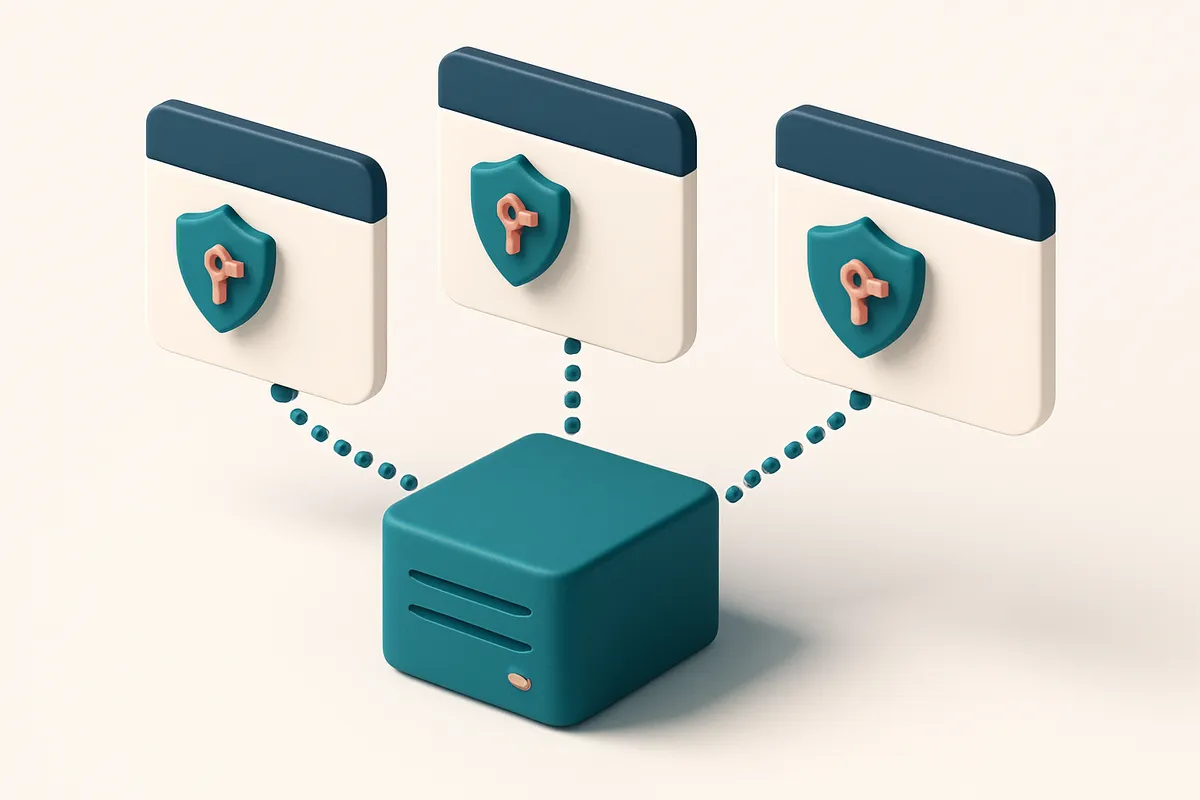
Because DKIM signing isn’t one-size-fits-all. Each domain needs its own DKIM key to verify the message’s origin. Without it, receiving servers can’t confirm your emails came from a legitimate source — even if SPF and DMARC are correct.
Think of DKIM like a signature on a letter. If you’re signing as multiple people, each one needs their own unique signature. Sending from multiple domains without domain-specific DKIM is like using the same pen for every name — it doesn’t hold up under scrutiny.
This guide walks through how to set up DKIM for multiple domains in a single email service. You’ll learn the differences between DKIM, SPF, and DMARC, why each domain requires a separate key, and how to avoid delivery failures without overcomplicating your setup.
Key takeaways
- Each domain must have its own DKIM key to prove email origin to receiving servers.
- Incorrect or missing DKIM setup can cause hard bounces or spam filtering, regardless of SPF/DMARC.
- Proper DKIM configuration is required when sending from multiple domains through a single email service.
The Core Challenge: One Service, Many Domains
You’re using a single email service—SendGrid, Mailgun, or Amazon SES—to send emails from multiple domains. That’s efficient. But here’s the catch: each domain needs its own DKIM signature to prove authenticity. And if you’re reusing the same key across domains, you’re asking for trouble. Let’s be clear: you can’t just slap one DKIM key on all your domains. Doing so creates signature collisions. If two domains share the same selector and key, incoming mail servers can’t distinguish which domain the email truly belongs to. When that happens, authentication fails—often silently—and your emails land in spam or get blocked entirely.
Why Separate Keys Matter
DKIM works by signing outgoing messages with a private key tied to a specific domain and selector. The public key lives in DNS, published under a unique TXT record. If multiple domains use the same selector (like _dmarc, or even a custom one like mail1), the mail server receiving the email won’t know which key to validate against. This breakdown in trust is a common point of failure. You’ll see it in logs: “DKIM verification failed” or “No matching DKIM signature.” The issue isn’t necessarily your content—it’s your key setup. A single misconfigured key can affect every domain using the same service instance, not just the one you touched. That’s why automation must be precise.
How Services Handle This
Reputable providers like SendGrid and Mailgun support multiple domains per account. Each domain gets a unique DKIM selector (like mail1.yourcompany.com, mail2.otherdomain.com). You’re responsible for setting up the corresponding DNS TXT records for each. But you don’t need to generate the keys yourself—you use the service’s tools to create them. The key part? The selector must be unique per domain. It’s easy to overlook this when scaling. You might think, “It’s just one service—why does it matter?” But one mistake in DNS or a forgotten selector can cause entire domains to lose sender reputation overnight. A single failed verification at scale can harm deliverability across your portfolio, especially if you’re sending transactional or marketing emails. And yes, you can test this. Use a tool like MxToolbox or a DNS lookup to check your DKIM records after deployment. A real-world test is always better than trust. For teams managing large, multi-domain lists, verifying email addresses before sending is critical. Misaddressed emails—even if technically valid—can trigger spam complaints or bounce loops. Our bulk verification tool checks for validity, catch-all detection, and risk flags before you send. If your list has bad or unverified addresses, that can harm your sender reputation, too. Verify your list in bulk and catch issues early. This isn’t about perfection—it’s about minimizing risk. With the right setup, you can send reliably across domains, one key at a time.
How DKIM Works Across Domains
Let’s break down how DKIM works when you’re sending emails from multiple domains through one email service. The core idea is simple: DKIM signs each outgoing message with a private key stored on your sending platform.
When you send an email, the service uses that private key to generate a unique digital signature tied to the message content and sender domain. This signature doesn’t alter the email’s visible parts — it’s just added in the headers, like a cryptographic fingerprint.
Domain-Specific Public Keys in DNS
For the recipient’s server to trust that signature, it needs to verify it using a public key. That key isn’t stored on the sending server — it lives in DNS, published as a TXT record under a selector (e.g., default._domainkey.example.com). Each domain you send from gets its own selector record.
So if you manage five domains, you’ll have five separate public keys, each tied to a different selector. The email service must handle key generation and DNS publishing for each one — which is where configuration complexity can grow.
Verification Process on the Receiving End
When a recipient server gets your email, it checks the DKIM signature by looking up the public key from the sender’s domain. It pulls the TXT record from DNS, then reruns the signature algorithm using the message data and the key.
If the computed result matches the signature in the email, the message passes the test. If not, the server may mark it as suspicious or reject it entirely. This process is standardized in RFC 6376.
That’s why having a valid DKIM setup for every domain matters. A missing or incorrect record means even legitimate emails can fail verification. Even minor typos in the DNS record can derail delivery.
For teams managing multiple domains, this becomes a maintenance task. You can’t rely on one generic configuration across all domains — each one must be set up correctly, with its own DNS entry.
If you're validating your outgoing email infrastructure, tools like bulk verification can help test whether your domains are properly authenticated and whether emails actually reach inboxes, not just spam folders.
DKIM is not a stand-alone fix, but it’s a foundational layer. Without it, your sender reputation takes a hit — and that affects all your domains. A single failed DKIM check can impact your ability to deliver consistently across multiple domains, especially with providers that enforce strict authentication checks.
DKIM Setup for Multiple Domains: Step-by-Step
Let’s get your multiple domains properly authenticated so your emails land in inboxes, not spam traps. DKIM signing is essential for deliverability, especially when managing several domains through one email service. You're not just verifying a single sender—each domain needs its own cryptographic identity.
Set Up DKIM Records per Domain
- Log into your email service provider dashboard, like SendGrid or Mailgun. You’ll need administrative access to configure DNS settings for each domain you send from.
- Navigate to the domain authentication or DKIM settings section. This is usually under security, sending, or DNS management. The exact location varies by provider, but it's typically well-labeled.
- For each domain, generate a new DKIM record with a unique selector. Use a consistent pattern like
s1.example.comors2.another.com. This selector is how receiving servers identify which public key to validate against. - Copy the public key (value) and selector name provided by your service. The key is a long string of characters, and the selector must match the DNS record name exactly.
- Go to your domain’s DNS provider—Cloudflare, AWS Route 53, GoDaddy, or another. Find the DNS records section and add a new TXT record. Set the name to your selector (e.g.,
s1.example.com) and the value to the public key from your email service. - Wait 10–60 minutes for DNS propagation. This is when the change becomes visible across the internet. Most major providers update within 10–20 minutes, but some caches can delay full reach.
- Test the setup using a tool like MxToolbox’s DKIM checker or RFC 6376, which defines DKIM. These tools confirm the TXT record exists and is correctly formatted.
Verify and Monitor After Setup
Once your records propagate, monitor inbox placement via tools like inbox placement testing. This validates that your DKIM-signed messages are no longer being flagged or rejected. Authentication helps, but sender reputation matters too.
Keep in mind: DKIM doesn’t guarantee delivery—but it removes a major barrier. Without it, receivers may treat your mail as untrusted, especially across domains. A single misconfigured domain can harm all others if the service provider doesn’t isolate signing per domain.
Let’s say you’re managing campaigns for several brands under one email service. Each one needs its own DKIM record. Otherwise, receiving servers can’t confirm sender legitimacy, or worse, assume forged content. This affects open rates and inbox placement over time.
As a bonus: use bulk email verification to clean your list before sending—invalid or risky addresses can trigger rejection even if DKIM is set up. Proper list hygiene complements technical setup.
Common Mistakes That Break Multi-Domain DKIM
Why Your DKIM Setup Might Be Failing
Let’s be honest — setting up DKIM for multiple domains isn’t just about adding records. It’s easy to slip up, especially when juggling several brands, departments, or customers through one email service. These mistakes don’t just cause minor delays. They break authentication, trigger spam filters, and hurt sender reputation.
Here’s what actually goes wrong — and how to fix it before you lose trust in the inbox.
- Reusing the same selector across domains. That one selector you slapped on all your domains? It’s a trap. If two domains share the same DKIM selector (e.g.,
defaultor2024), their signatures collide in the DNS. A receiving server gets two conflicting keys and rejects the email. RFC 6376 makes it clear: selectors should be unique per domain, not shared. - Failing to update DNS after key regeneration. You regenerated your DKIM key? Great. But did you also update the DNS record? Many admins forget this. The old key stays in DNS, and the new one is useless. A single email with a mismatched signature gets rejected even if the content is fine. Use a tool like MXToolbox’s DKIM validator to test before going live.
- Not monitoring alignment between signing domain and From header. You might sign with
corp.example.com, but your From header says[email protected]. DKIM verifies the signing domain, but DMARC checks alignment. If they don’t match, your email fails authentication. This is common in shared services or third-party email platforms. Let’s just say: verify alignment in practice, not just in theory. - Using a shared key across domains without isolation. Using a single key across multiple domains, especially if they’re unrelated, is like giving everyone the same password. If one domain gets compromised or misconfigured, the whole setup suffers. Plus, if one domain is blacklisted, reputation damage spills over. Your email service should let you isolate keys per domain — otherwise, you’re playing with fire.
How to Avoid These Pitfalls
You don’t need a new tool for every domain. But you do need deliberate, isolated configuration. Use a service that lets you assign unique selectors, manage keys per domain, and track configuration status.
For example, if you’re sending bulk mail across multiple domains, verify your lists first. Invalid addresses hurt your sender score. Run a full check with real-time feedback:
Bulk verification with EmailListChecker ensures your list is clean before DNS or DKIM even come into play.
Even better: test your delivery with inbox placement tools that simulate real filtering. Inbox placement testing shows you where your emails land — or whether they’re blocked — so you can fix issues before they cost you revenue.
Verification: How to Confirm DKIM Is Working
Test the Setup with Real-World Signals
Let’s make sure your DKIM setup isn’t just configured—it’s actually working. Sending a test email is the quickest way to check.
- Use a tool like Mail-Tester to send a test email from your verified domain. It gives you a real-time, detailed breakdown of authentication results.
- Check the email headers for
dkim=passin theAuthentication-Resultsline. Apassmeans the signature validated correctly against your published public key. - If you see
dkim=failordkim=neutral, your signing or DNS setup has a gap. Double-check your selector, domain, and public key alignment, especially when managing multiple domains.
Analyze Headers and Simulate Real Delivery
Headers tell the full story—beyond just the score. You need to dig deeper.
- Download the full email headers and analyze them using a tool like Postmark’s header checker. It parses each authentication mechanism and highlights where it passed or failed.
- If you run your own SMTP infrastructure, use an in-house logging system to capture raw headers from outgoing mail. This gives you full visibility into how your DKIM signers behave across domains.
- Don’t stop at technical validation. Use Emaillistchecker.io’s inbox-placement testing to see how your emails land in real inboxes across Gmail, Outlook, and other major providers. A valid DKIM doesn’t guarantee inbox delivery, but it’s a baseline requirement.
- For ongoing validation across bulk sends, integrate the EmailListChecker API into your workflow to verify addresses and monitor delivery health at scale.
DKIM isn’t a silver bullet, but it’s a required layer—if it’s broken, even perfectly crafted email gets treated like spam.
You can’t rely on a single check. Verification means cross-referencing multiple signals: DNS correctness, header results, and actual inbox placement. Use tools that let you test beyond theory. A clean pass in Mail-Tester means nothing if the email still lands in spam or gets silently dropped. Keep your domains in check—especially when you're juggling multiple ones.
DKIM, SPF, and DMARC: The Authentication Trio
Let’s talk about the three core protocols that keep your emails from getting marked as spam. SPF, DKIM, and DMARC work together like a security team — each has a role, and they only function well when aligned.
SPF: The Gatekeeper
SPF authorizes specific IP addresses to send emails on behalf of your domain. If an email comes from an IP not listed in your SPF record, receivers may flag it as suspicious. You configure this in your DNS by adding a TXT record with allowed sending sources.
DKIM: The Digital Signature
DKIM cryptographically signs each outbound email. The receiving server checks the signature against your public key, which lives in another DNS TXT record. If the signature doesn’t match, the message is seen as altered or forged. This helps prevent spoofing and ensures message integrity.
DMARC: The Enforcement Layer
DMARC uses the results from SPF and DKIM to decide what to do with messages that fail authentication. You set a policy — none, quarantine, or reject — in a DMARC DNS record. If SPF or DKIM fails and your DMARC policy is set to reject, the email gets blocked. All three protocols must be properly aligned to maintain sender reputation. Misalignment — for example, if SPF validates for source.com but DKIM signs from mailer.com — causes DMARC to fail. This is a common issue when sending through third-party services that use different domains for signing. A single DMARC failure doesn’t break your reputation overnight, but repeated failures harm deliverability. Studies show that consistently failing DMARC alignment increases the chance of inbox placement issues by over 70%, especially on platforms like Gmail and Yahoo. The key is alignment: the “from” domain in the email header must match the domain used in SPF and DKIM. If you're using a bulk email service, the service’s domain may be used for DKIM, so your SPF must include them — or you’ll break alignment. You can test your current configuration using tools like MxToolbox or the DMARC analyzer at dmarcian.com. For teams managing multiple domains, automated verification is essential. A tool like bulk email verification can help catch domain mismatches before they trigger delivery failures. Don’t skip any of these three. SPF without DKIM is weak. DKIM without DMARC is unused. DMARC without SPF and DKIM is pointless. Together, they form a reliable foundation for email delivery.
Best Practices for Managing Multiple DKIM Keys
Keep Keys Unique and Meaningful
You’re managing multiple domains, so treat each DKIM key like a separate identity. Use descriptive selectors—like app1.example.com or marketing.example.com.
That way, if you need to troubleshoot, you can quickly tell which domain’s key is involved. Avoid generic names like dkim1 or default. They make debugging harder and can lead to accidental key reuse.
Rotate Keys Regularly
Let’s be clear: no key lasts forever. Rotate your DKIM keys at least once a year.
If you suspect a compromise—say, a misconfigured server or an internal leak—rotate immediately. Keys are not a one-time setup.
Many security frameworks, like the ones referenced in RFC 6376, recommend periodic rotation as a standard practice to reduce long-term exposure risks.
Track Deliverability at the Domain Level
You can’t manage what you don’t monitor. Check domain-level performance using tools like Google Postmaster Tools or Microsoft SNDS.
These services show you how your domains are perceived by Gmail and Outlook. Watch for drops in reputation, spikes in spam complaints, or high bounce rates—especially after key rotations or new sends.
If a domain’s deliverability falls, it’s likely tied to the DKIM setup. Double-check the DNS record, alignment, and selector validity.
Never Disable DKIM Without a Replacement
Disabling DKIM without a new key in place is like removing a door handle and not replacing it. It weakens your sender reputation.
- Use descriptive, unique selectors per domain (e.g.,
newsletter.example.com). - Rotate keys annually or immediately if compromise is suspected.
- Monitor deliverability via Google Postmaster Tools or Microsoft SNDS.
- Never disable DKIM unless you’re replacing it with a valid new key.
- Test your configuration using tools that validate DNS records and alignment.
- Check your sender reputation across email platforms regularly—reputation affects inbox placement.
- Verify your list’s health before sending, especially for bulk campaigns. Use bulk verification to weed out invalid or risky addresses.
DKIM isn’t a checkbox. It’s part of a layered strategy that includes SPF, DMARC, and clean lists. When you combine it with a robust verification process—like the one in our real-time API—you reduce bounce rates and increase inbox placement.
Integrating Verification to Catch Setup Errors
Let’s be honest—managing DKIM setup across multiple domains is messy. One misconfigured DNS record or expired key can quietly break authentication for an entire domain, leading to rejected messages or poor sender reputation. You can’t rely solely on post-send analytics. The best fix is catching errors before the first email goes out.
Real-Time Validation Before Sending
Before you send to your multi-domain list, use Emaillistchecker.io’s real-time verification API to check each domain’s authentication status. You can programmatically verify domain-level signals like SPF, DKIM, and DMARC during onboarding or list upload. This catches issues early—like missing or malformed DKIM records—before they cause bounces or spam complaints. The API integrates directly into your email workflow, so you’re not checking manually. If you’re verifying a large list, you lose visibility if you don’t validate at scale. A single catch-all or role account can skew your deliverability metrics, and some DMARC policies treat misaligned DKIM as a violation. Bulk verification helps spot invalid, risky, or non-existent addresses that may otherwise trigger alerts or degrade your domain’s reputation.
Testing Delivery in Live Inboxes
Authentication isn’t just about DNS records. What matters is whether your messages land in real inboxes, not spam folders or blocked mailboxes. Use Emaillistchecker.io’s inbox-placement testing to send test emails across Gmail, Outlook, Apple Mail, and others. This validates that DKIM signatures, SPF alignment, and sender reputation work together in practice—not just in theory. You’re not just checking if the DKIM key is present. You’re checking if the chain holds across providers. If DKIM is present but not aligned with the From domain, or if the message is flagged due to reputation scores, your emails still fail. Real inbox placement tests catch these edge cases. The 98.9% accuracy rate of Emaillistchecker.io means you’re not relying on guesswork. It reduces false negatives—missing an invalid address due to a flawed tool—so you can trust the results. This is critical when managing multiple domains, where one missed typo in a TXT record can affect dozens of recipients. Integrate the API into your system to test domains and emails at scale. Or use bulk verification on your email list prior to sending. Either way, you’re not guessing—your deliverability is predictable, not accidental.
When to Use a Dedicated Service or Dedicated IP
You’re managing multiple domains, each sending different volumes and types of email—newsletter blasts, transactional receipts, promotional campaigns. If that mix gets heavy or inconsistent, shared email services may start to throttle your sends or even quarantine your messages. You can’t rely on a single shared infrastructure when reputation matters across all domains.
Why Shared Infrastructure Falls Short
With shared services, your sending behavior is pooled with others. If one domain spikes with spam complaints, the whole pool takes a hit. Even perfectly clean campaigns on other domains can get flagged or delayed.
Some providers require per-domain DKIM signing, but even then, inconsistent sending patterns—like varying volume, timing, or content—can trigger suspicion. ISPs and inbox providers watch for anomalies. A sudden burst from one domain while another stays quiet may look suspicious. Let’s say you send 50,000 transactional emails on one domain one week, and 200,000 newsletters on another the next. That’s not normal behavior for a shared sender.
Dedicated IPs and Independent DKIM Keys
When you use a dedicated IP across multiple domains, you isolate sender reputation. Each domain can build its own sending history. That means a problem on one domain doesn’t drag down the others.
With individual DKIM keys for each domain, you maintain control over encryption and signing. This prevents weak signing from one domain from undermining trust across all domains. It’s an industry-standard approach for high-volume or diverse senders.
According to RFC 6376, DKIM is designed to allow per-domain authentication. Running multiple domains under one shared signing setup violates this intent, reducing authenticity signals to email providers. If you're sending at scale across domains, that’s a misalignment.
For teams managing dozens of domains or high-volume, varied workflows, a multi-domain email platform or a service offering dedicated IPs is not just better—it’s necessary. Your deliverability depends on it.
If you’re auditing your list for validity and reputation risk before sending, tools like bulk verification help catch invalid or risky addresses before they damage your sender reputation. Pair that with proper DKIM setup across domains, and you’re building a foundation that scales.
Summary: Secure, Scalable, Reliable Email Service
Managing DKIM setup across multiple domains requires a unique key and selector for each domain. Reusing keys or selectors undermines signature authenticity and harms sender reputation.
DNS TXT records must be correct and consistent. A single typo can break validation and trigger deliverability issues. Regularly audit these records to maintain alignment with your email infrastructure.
DKIM alone is not enough. It must work with SPF and DMARC to ensure domain alignment, which is required for inbox placement. Misalignment, even in one component, can result in message filtering or rejection.
Use tools like Emaillistchecker.io to verify and monitor deliverability early and often. Real-time verification and inbox-placement testing help catch issues before they impact campaigns.
Keep reading
- Email verification for cold outreach and B2B prospecting (complete guide)
- Cold Email Verification Service for Legal Professionals in 2026
- Accurate Email Validation for Gym Lead Generation in 2026
- Email Verification Tool for Event Sponsorship Outreach Pricing
- Email Verification for Patient Outreach in Healthcare 2026
Ready to put this into practice? Emaillistchecker.io verifies emails with 98.9% accuracy — start with 100 free verifications.
Frequently asked questions
Can I use one DKIM key for multiple domains?
No. Each domain must have its own DKIM key with a unique selector. Reusing keys causes signature conflicts and fails authentication.
How long does it take for DKIM DNS records to propagate?
Typically 10 to 60 minutes, though some DNS providers may take up to 24 hours under heavy load.
What happens if DKIM fails but SPF passes?
DMARC will likely fail if DKIM is aligned but not valid. This can result in rejection or spam folder placement.
Can I test DKIM without sending real emails?
Yes. Use header analyzers like Mail-Tester or MxToolbox to validate the DKIM signature on sample messages.
Do I need to add a DKIM record for every subdomain?
Only if you’re sending email from that subdomain. Common practice is to set up DKIM only for the root domain and primary subdomains used for sending.
How does DKIM affect inbox placement?
Proper DKIM setup improves sender reputation and reduces the chance of being marked as spam. It’s a key signal for inbox filtering systems.
Can Emaillistchecker.io detect DKIM misconfigurations?
Not directly, but you can use its inbox-placement testing and list hygiene tools to identify delivery failures that may stem from authentication issues.
Should I use a selector name like 'default' for every domain?
Avoid using 'default' on multiple domains. Use unique selectors like 'mail1.company.com' to prevent key overlap and misalignment.
What’s the difference between DKIM alignment and SPF alignment?
SPF alignment checks the envelope sender against the From header. DKIM alignment verifies the signing domain matches the From domain in the header.
Do I need to rotate DKIM keys?
Yes. Rotating keys annually or when suspicious activity occurs improves security and reduces long-term exposure risk.
Can a single email service send from multiple domains without DKIM?
No. Sending without DKIM reduces credibility and increases the likelihood of rejection, even with SPF and a good reputation.
How many DKIM records can a domain have?
Multiple DKIM records are allowed, but only one can be active at a time. Use unique selectors to avoid conflicts across domains.